A few built-in settings can protect your accounts, photos, messages, and personal information.
Start With the Lock Screen
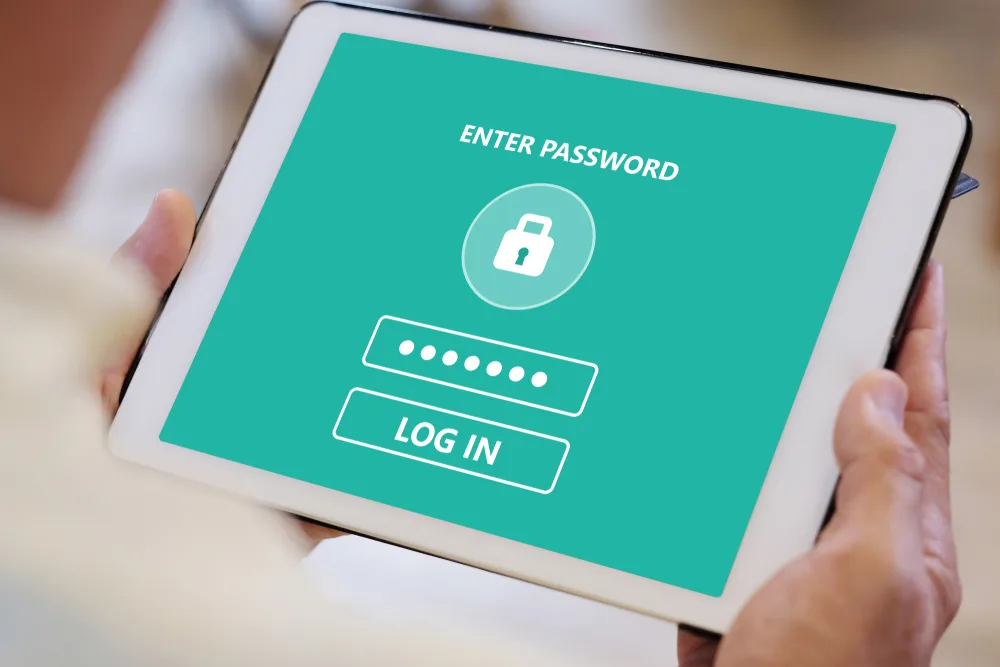
The lock screen is the first barrier between your phone and anyone who picks it up.
Use a PIN, password, fingerprint, or face unlock. Avoid easy codes such as 1111, 1234, or a birthday. A longer PIN or password is harder to guess.
Also check how quickly the phone locks after you stop using it. If it stays open for a long time, someone could use it before the screen locks.
Check Who Can See Notifications
A locked phone can still show private details.
Text messages may show one-time security codes. Email alerts may show names or account information. Banking alerts may show purchase amounts.
Most phones let you hide the message itself until the phone is unlocked. You can still see that an alert arrived without showing the full text to anyone nearby.
Review Location Access
Many apps ask for your location. Some truly need it. Maps, ride apps, and local weather tools are good examples.
Other apps may work fine without knowing where you are all day.
Open the privacy settings and check which apps can use location. “Only while using the app” is often enough. Some phones also let you share a rough location instead of your exact location.
Look at Camera and Microphone Permissions
Video chat apps need the camera and microphone. A voice recorder needs the microphone. A photo app needs the camera.
But a shopping game or simple calculator may not need either one.
Check the permission list. If an app does not have a clear reason to use your camera or microphone, turn that access off. You can always allow it later if the app needs it for a feature you choose to use.
Turn On Automatic Updates
Phone makers release updates for more than new features. Updates can also fix security problems.
Look for a setting that allows the phone to download or install updates on its own. Keep important apps updated too, especially browsers, email apps, banking apps, and payment apps.
If a very old phone no longer gets security updates, it may be harder to protect over time.
Use Two-Step Verification on Important Accounts
A password is one layer of protection. Two-step verification adds another.
After the password, you may be asked to approve a sign-in, enter a code, or use an authentication app.
Start with your email account. Email is often used to reset passwords for other services. Then protect banking, payment, cloud storage, and social media accounts.
Check the List of Signed-In Devices
Large account services often show which phones, tablets, computers, and browsers are signed in.
Review the list every few months. Remove devices you sold, traded in, lost, or no longer use.
An unfamiliar device does not always mean someone broke into the account. Device names can be vague. Still, if the date, device type, or location looks wrong, change the password and sign out of other sessions.
Make Sure Find-My-Phone Tools Are Ready
Phones can be lost in a car, store, airport, or couch cushion. Built-in find-my-device tools can help.
Depending on the phone, you may be able to see its location, play a sound, lock it, or erase its data from another device.
These tools usually need to be turned on before the phone goes missing. It is worth checking now rather than after you need them.
Remove Apps You No Longer Use
Old apps can keep permissions even when you forget they are installed.
Scroll through your app list and remove things you no longer use. This can free storage, cut down on background activity, and make privacy settings easier to manage.
If you need an app later, you can usually install it again from the official app store.
Check What Happens on Public Wi-Fi
Public Wi-Fi can be useful at airports, hotels, libraries, and coffee shops. Still, avoid doing sensitive work on a network you do not trust. If you need to check a bank account or enter private information, your mobile connection may be a better choice.
Turn off automatic Wi-Fi joining if your phone connects to random open networks. When you finish using a public network, you can tell the phone to forget it so it does not reconnect later without you noticing.
Review Saved Payment Information
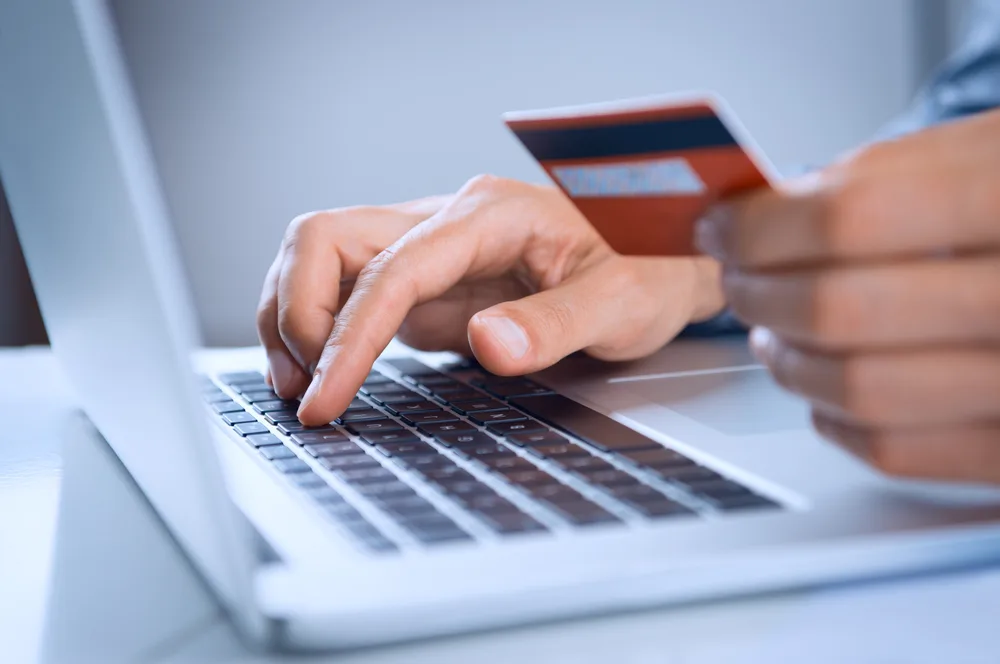
Phones and browsers can store credit cards, debit cards, and billing details to make checkout faster.
Open your wallet or browser settings and remove cards you no longer use. Make sure the phone requires a screen lock or another check before a payment can be approved.
If a card was replaced because it was lost or stolen, look for the old number in shopping apps and saved payment lists. Removing old details keeps the phone easier to manage.
A Simple Monthly Check
Phone security does not need to become a daily job.
Once a month, look at three things: recent updates, new apps, and account alerts. Every few months, check permissions and signed-in devices.
Small checks are easier than trying to fix many problems at once. They also make it easier to notice when something has changed.