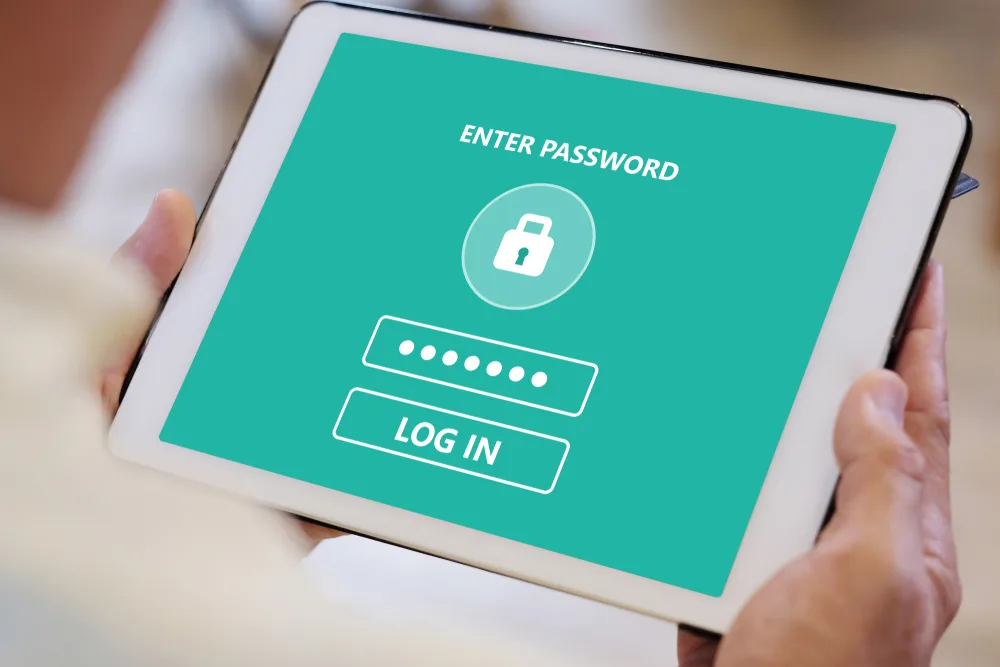
Apps may be able to see your location, photos, contacts, camera, microphone, and more.
Why App Permissions Matter
Apps need permission to use certain parts of your phone.
A map needs location. A camera app needs the camera. A video call needs the microphone. Those requests make sense.
Problems can start when an app has more access than it needs. A permission you approved years ago may still be turned on today.
Begin With the Privacy Menu
Open your phone settings and look for Privacy, Permissions, or Security and Privacy.
You can often view access by type. For example, tap Location to see every app that can use your location. Tap Microphone to see every app that can listen through the mic.
This is faster than opening each app one at a time.
Location: Does the App Need You All Day?
Some apps work best with location on all the time. A family safety app may be one example.
Many others only need location while you are using them. A food delivery app may need your location when you place an order, but not hours later.
Choose the lowest level of access that still lets the app do what you want. Some phones also offer an “approximate location” choice.
Photos: Full Library or Just a Few?
Some apps ask for access to every photo.
Newer phones may let you choose only the pictures you want to share. That can be a better choice when you are uploading one profile photo, receipt, or document.
Review apps with full photo access. If an app only needs a few pictures, limit what it can see.
Contacts: Think About Other People’s Information Too
Your contact list can include names, phone numbers, email addresses, birthdays, and notes.
Messaging apps may use contacts to help you find people. A game or shopping tool may not need the same access.
Removing contact permission can protect not only your information, but also details about friends, family, and coworkers.
Camera and Microphone: Watch the On-Screen Indicator
Many phones show a dot or icon when the camera or microphone is active.
Learn what that symbol looks like on your device. If it appears at an odd time, check which app is using it.
You can turn camera or microphone access off for an app and turn it back on later if needed.
Files and Storage: Check What Can Be Opened
Some apps need access to documents, downloads, or other files.
A document scanner or cloud storage app may need broad access. A simple game usually does not.
If your phone offers a choice to select one file instead of giving full storage access, use the narrower choice when it works.
Background Activity: Who Is Working When the Screen Is Off?
An app can use battery and data even when it is not open on the screen.
Email, maps, music, and messaging apps often need some background activity. Other apps may not.
Review background refresh or battery settings. Limiting unused apps can help battery life and reduce extra data use.
Browser Notifications Can Look Like App Alerts
Some websites ask for permission to send notifications.
Later, those alerts may appear beside real app notifications. A site can use a scary headline that looks like a phone warning.
Open your browser settings and review which sites can send alerts. Remove any site you do not trust or no longer want to hear from.
Delete Apps You Have Forgotten About
Old apps are easy to ignore.
If you have not used an app in months, ask whether you still need it. Removing it also removes its chance to keep using permissions in the background.
You can always reinstall it later from the official store.
Check Bluetooth and Nearby Device Access
Bluetooth connects phones to cars, headphones, watches, speakers, and other devices.
Some apps ask for nearby-device access even when you do not expect it. Review which apps have that permission. Keep it on for tools that need to connect to a device and turn it off for apps that do not.
Also remove old Bluetooth devices you no longer own. A shorter list makes it easier to see what your phone is really connected to.
Look at Calendar and Health Permissions
Calendar access can show appointments, locations, and names. Health apps may hold exercise, sleep, or other personal data.
Not every app needs that information. Check which apps can read or add calendar events. If your phone has a health data section, review those permissions separately.
Give access only when the feature is useful to you. If you stop using the feature, you can remove the permission later.
Build a Short Privacy Routine
Every few months, review location, camera, microphone, photos, contacts, and notifications.
Do the same after installing several new apps. It only takes a few minutes once you know where the settings are.
The goal is not to block every permission. The goal is to make sure each app has only the access it truly needs.